---
title: Guide to Choosing the Best Password Manager for Family 2026
description: Discover the best password manager for family in 2026 with expert tips, top features, setup guidance, and security best practices to safeguard your household online.
image: https://www.ironcladfamily.com/hubfs/featured-guide-to-choosing-the-best-password-manager-for-fa-ivutef.jpg
---
[Skip to content](https://www.ironcladfamily.com/blog/password-manager-for-family#main-content)
[](https://www.ironcladfamily.com/)
- [WHY DIGITAL VAULTS](https://www.ironcladfamily.com/blog/tag/digital-family-vaults-estate-planning)
- [FINANCIAL PLANNING](https://www.ironcladfamily.com/blog/tag/financial-planning)
- [END OF LIFE PLAN](https://www.ironcladfamily.com/blog/tag/end-of-life-planning)
- [PREPAREDNESS](https://www.ironcladfamily.com/blog/tag/emergency-planning)
- [FOR ADVISORS](https://www.ironcladfamily.com/blog/tag/advisors)

# Guide to Choosing the Best Password Manager for Family 2026

[Sahar Lester December 19, 2025](https://www.ironcladfamily.com/blog/author/sahar-lester)
- [Advisors](https://www.ironcladfamily.com/blog/tag/advisors)
- [Digital Family Vaults & Estate Planning](https://www.ironcladfamily.com/blog/tag/digital-family-vaults-estate-planning)
- 18 mins
As families spend more time online, cyberattacks targeting households are increasing at an alarming rate. Weak password habits can put everyone at risk, from children to seniors.
This guide empowers you to select the best password manager for family security and peace of mind in 2026.
Inside, you will discover why families need password managers, which features matter most, the top options for the year, setup and onboarding tips, security best practices, and answers to frequent questions.
With the right knowledge and tools, your family can stay safe and confident in the digital world.
## Why Families Need a Password Manager in 2026
Families face a rapidly changing digital world, where online threats are more sophisticated and frequent than ever before. As more devices and accounts enter the household, the need for a password manager for family has become a critical part of everyday digital safety.
### The Evolving Threat Landscape
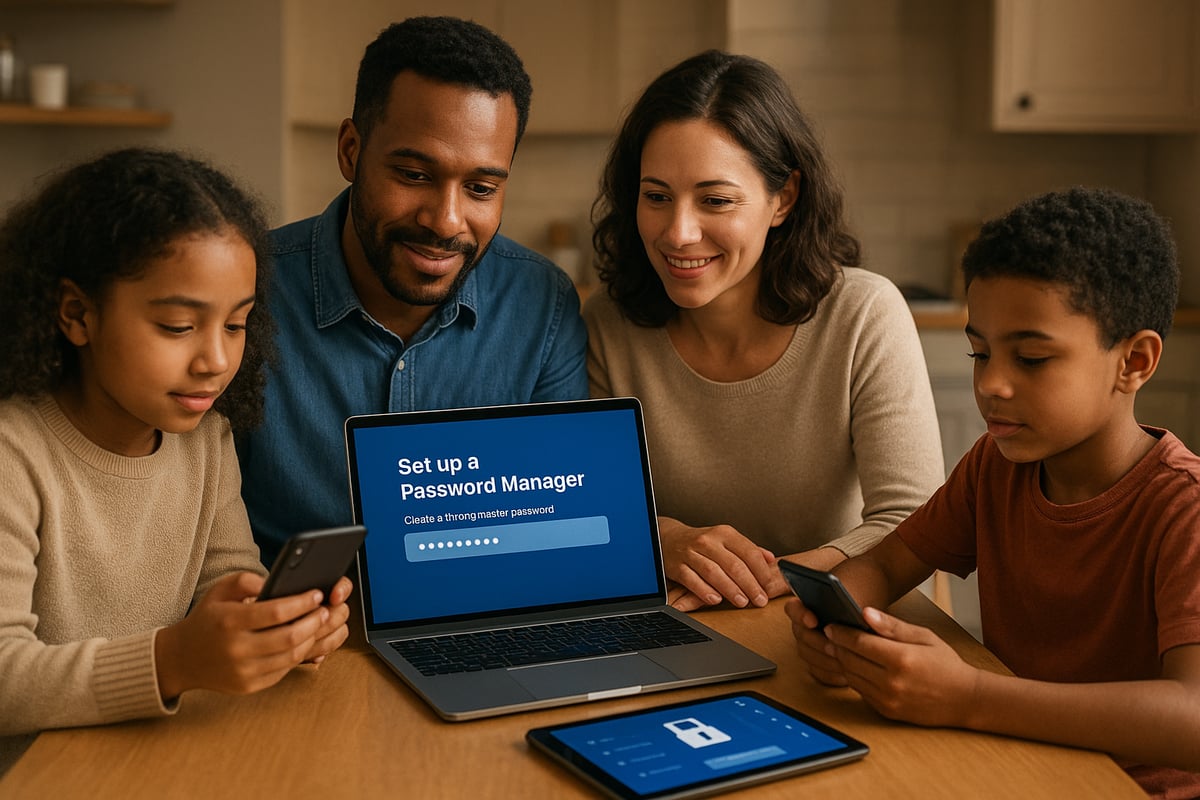
Cyberattacks targeting families are on the rise. Hackers use phishing emails and credential stuffing to break into shared accounts, often exploiting weak or reused passwords. Over 80 percent of data breaches now involve compromised credentials, making the stakes higher for everyone in the household.
Many families still keep passwords in spreadsheets or on paper, which can be easily lost or exposed if leaked. With children and teens spending more time online, the attack surface expands. Every new device or account increases the potential for vulnerabilities, making it harder to keep track of everything without a dedicated password manager for family.
### Challenges Unique to Families
Managing digital life as a family introduces unique hurdles. Account sharing is common for streaming services, utility bills, and school portals, but sharing credentials without overexposing sensitive data is tricky. Family members have different comfort levels with technology, from young children to seniors, which can complicate onboarding and ongoing use.
There is also the challenge of controlling access to critical accounts, like banking or healthcare, ensuring only the right people have permission. Convenience must be balanced with security, as not everyone in the family may understand the risks of careless password habits. Physical notes or accidental sharing can lead to lost or stolen credentials, further highlighting the need for a reliable password manager for family.
### Benefits of a Family Password Manager
A password manager for family provides a centralized, encrypted vault for all credentials, simplifying life for every member. With granular sharing and access controls, parents can protect sensitive accounts while safely sharing others with children or elderly relatives.
Onboarding new family members is streamlined, and unsafe practices like notebooks or spreadsheets become a thing of the past. Planning for emergencies is easier, as the password manager can facilitate digital legacy and secure handover of important information. For practical steps on securing your family’s credentials, resources like the [Protecting Your Passwords Guide](https://www.ironcladfamily.com/blog/protecting-your-passwords) offer actionable advice that complements these benefits.
A password manager for family is no longer a luxury but a necessity for safeguarding the entire household’s digital life.
## Key Features to Look for in a Family Password Manager
Choosing the right password manager for family use means understanding which features truly matter. The best solutions are designed to keep every household member secure while making daily digital life easier. Below, we break down the critical features to consider for 2026.
### Multi-User and Role-Based Access
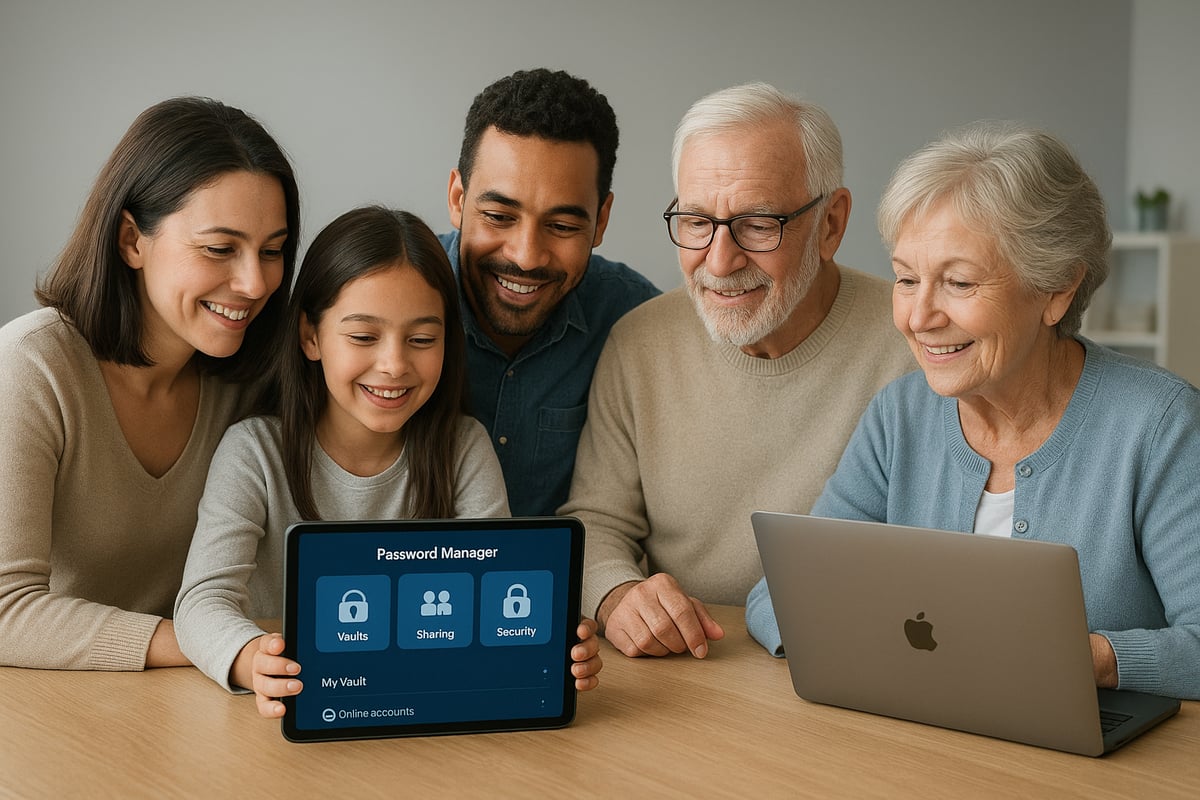
A password manager for family must support multiple user accounts under a single plan. Look for options that allow you to set up individual profiles for each family member, with the ability to grant or restrict access to sensitive information.
- Parental controls to block children from viewing financial or medical accounts
- Separate personal and shared vaults so everyone can keep private logins safe
- Audit logs to track who accessed or changed credentials
This flexibility ensures your password manager for family keeps everyone protected, regardless of age or tech skill.
### Cross-Device Compatibility and Sync
Families today use a mix of PCs, smartphones, tablets, and browsers. Your chosen password manager for family should sync seamlessly across all these devices.
Seek out solutions compatible with Windows, macOS, iOS, Android, and even Linux. Reliable sync prevents frustration when accessing passwords from different locations or while traveling.
For multi-device households, this feature is essential to guarantee everyone always has the credentials they need.
### Security and Privacy Standards
Security is the foundation of any password manager for family. Prioritize solutions with end-to-end encryption, meaning only your family controls access. Two-factor authentication (2FA) and biometric unlocks add extra layers of protection.
Look for managers that undergo regular security audits and hold third-party certifications. Some even monitor the dark web for breached credentials and alert you immediately. For a deeper dive into essential security features, see [Password Manager Security Features](https://www.keepersecurity.com/blog/2025/07/18/8-features-to-look-for-in-a-password-manager/).
Choosing a password manager for family with these protections ensures your data remains private and safe even as threats evolve.
### Usability and Onboarding Experience
An intuitive setup is critical when selecting a password manager for family. Look for managers with guided onboarding, step-by-step tutorials, and responsive customer support.
- Easy import/export tools for moving from browsers or spreadsheets
- Simple interfaces suitable for children, teens, and seniors
- Biometric login for fast, secure access
A smooth onboarding process helps every family member adopt strong password habits quickly.
### Emergency Access and Digital Legacy
Unforeseen events can happen at any time, so your password manager for family should provide emergency access features. These let you designate trusted contacts who can access vital accounts if needed.
- Emergency contacts and access delegation
- Secure digital legacy planning for estate management
- Documented procedures for passing on credentials
With these options, you ensure your family will never be locked out of important accounts during emergencies.
### Pricing and Value
When evaluating a password manager for family, review the family plan structure. Consider how many users, devices, and vaults are included, and whether free or paid tiers meet your needs.
Compare transparency in costs, renewal terms, and upgrade options. Some managers offer affordable entry-level plans, while others provide extras like monitoring or VPN. Always balance cost with the features your household requires.
### Integration with Other Tools
A versatile password manager for family integrates easily with other apps and services. Top options include browser extensions for autofill, support for passwordless logins, and compatibility with digital vaults or document storage.
- Browser autofill and capture tools
- Passkey and passwordless login support
- Integration with secure digital vaults
These integrations streamline your family's online experience and add convenience to daily life.
## Top Password Managers for Families in 2026: Features, Pros & Cons
Choosing the best password manager for family use in 2026 is crucial for digital security and peace of mind. With cyber threats evolving and family needs growing more complex, finding the right fit ensures every household member stays safe, organized, and empowered online.
To help you make an informed decision, here is a side-by-side comparison of leading password manager for family solutions:
| Password Manager | User Limit | Key Features | Unique Strengths | Potential Drawbacks |
| --- | --- | --- | --- | --- |
| 1Password Families | 5+ | Individual/shared vaults, emergency access | Intuitive UX, granular sharing | Higher price, advanced features may need setup |
| Bitwarden Families | 6 | Open-source, strong encryption, import/export | Affordable, self-hosting | UI less intuitive for some, setup can be technical |
| Proton Pass Family | 6+ | Privacy focus, Proton ecosystem | Free tier, simple UI | Limited advanced sharing, newer platform |
| Dashlane Family | 5+ | VPN bundle, password health, breach alerts | Visual reports, easy onboarding | Limited offline access, export restrictions |
| NordPass Family | 6 | Health checker, breach scanner | Family dashboard, audits | Fewer unique features for large families |
Each password manager for family offers a unique blend of security, usability, and value. Let’s explore what sets each apart.
### 1Password Families
1Password Families remains a top password manager for family households prioritizing both security and ease of use. It supports multiple user accounts under one plan, offering individual vaults for privacy and shared vaults for household needs.
Key features include robust family sharing controls, granular permission settings, and the ability to delegate emergency access. Onboarding is intuitive, with guided tutorials and biometric login options for convenience.
Pros:
- Cross-platform compatibility (Windows, macOS, iOS, Android, browsers)
- Emergency access and digital legacy tools
- Detailed audit logs
Cons:
- Higher price compared to some competitors
- Advanced features may require initial setup time
For families seeking comprehensive protection and control, this password manager for family is a strong contender.
### Bitwarden Families
Bitwarden Families is ideal for tech-savvy households or those who value open-source transparency in a password manager for family. It offers affordable plans for up to six users, strong end-to-end encryption, and the flexibility of self-hosting.
Migration is made easy with import/export tools, and the interface, while functional, may appear less polished to some users. Its open-source foundation means regular community-driven updates and high security standards.
Pros:
- Budget-friendly pricing
- Self-hosting option for privacy enthusiasts
- Transparent security practices
Cons:
- User interface can feel basic
- Less intuitive for non-technical family members
This password manager for family is especially appealing for households comfortable with technical setups.
### Proton Pass Family
Proton Pass Family stands out as a privacy-first password manager for family use, especially for those already invested in the Proton ecosystem (Mail, Drive, VPN). Its free tier covers basic needs, while paid plans allow for more users and advanced features.
The user interface is clean and accessible, making onboarding simple for all ages. Biometric login and cross-device sync are included, but advanced sharing controls are limited compared to some rivals.
Pros:
- Emphasis on privacy and minimal data collection
- Integration with Proton services
- Free tier available
Cons:
- Fewer granular sharing or role-based permission options
- Newer platform, so some features are still evolving
Families focused on privacy and simple management will appreciate this password manager for family.
### Dashlane Family
Dashlane Family combines strong security features with convenience, making it a popular password manager for family groups. Its visual password health reports and breach alerts help keep everyone informed and proactive.
A VPN is bundled with higher-tier plans, offering extra privacy. Onboarding is straightforward, and autofill works seamlessly across devices. However, offline access is limited, and export options are somewhat restrictive.
Pros:
- Password health monitoring and breach notifications
- Bundled VPN on premium plans
- User-friendly onboarding
Cons:
- Limited offline functionality
- Exporting data can be challenging
For families seeking a visually guided, all-in-one password manager for family, Dashlane is a compelling choice.
### NordPass Family
NordPass Family is designed for security-conscious households wanting a user-friendly password manager for family. It offers a family dashboard to manage users and sharing, plus features like a password health checker and data breach scanner.
Regular third-party audits ensure compliance with industry standards. Pricing is competitive, and cross-device support is robust. Larger families may want to check user limits before committing.
Pros:
- Family dashboard for centralized management
- Regular security audits and breach alerts
- Strong password health tools
Cons:
- May not scale as easily for very large families
- Some advanced features are only in higher tiers
NordPass Family is suited for families wanting both security and simplicity in their password manager for family.
### Other Noteworthy Options
Other password manager for family alternatives include Keeper Family, Zoho Vault, and browser-based managers like Chrome, Safari, and Firefox. Keeper and Zoho offer family plans with granular controls and enterprise-grade security, while browser-based options are often free and simple but can lack advanced features and robust encryption.
Open-source and proprietary solutions each have their merits. Open-source managers provide transparency, while proprietary options often prioritize user experience. For a broader view of current offerings, you can explore [Best Password Managers 2025](https://www.techradar.com/best/password-manager) for expert comparisons and up-to-date evaluations.
Selecting the right password manager for family means considering household needs, budget, and technical comfort. Taking the time to compare options ensures your family’s digital safety remains a top priority.
## How to Set Up and Onboard Your Family: Step-by-Step Guide
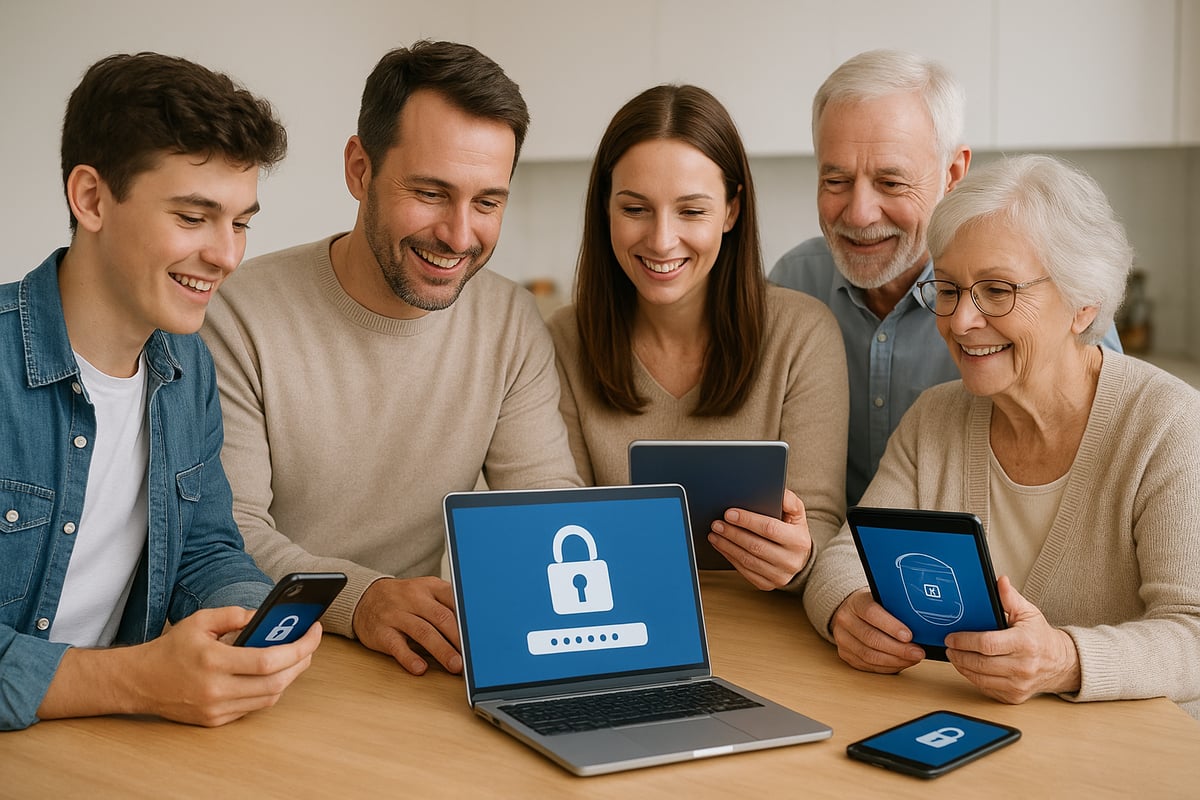
Setting up a password manager for family use is a crucial move toward digital security. A well-structured onboarding process ensures everyone in your household benefits from secure, convenient access. Here is a step-by-step guide to help you get started and keep your family's digital life protected.
### Step 1: Assess Family Needs and Choose the Right Plan
Begin by evaluating your family's specific requirements. How many users need access? What types of accounts will you manage, such as streaming services, school portals, or banking? Consider how many devices are in use, from smartphones to tablets and computers.
Think about each family member's comfort with technology. Some may need extra support, while others are more tech-savvy. Assess whether you need features like parental controls or emergency access.
Compare available options for a password manager for family use. Review family plans for user limits, device compatibility, and included features. Choose a plan that fits your household size and security needs.
### Step 2: Create Accounts and Assign Roles
Once you have selected a password manager for family needs, set up the main administrator account. This is usually handled by a parent or guardian who will oversee permissions and settings.
Add each family member as a user under your family plan. Assign appropriate roles based on age and responsibility. For example, adults may get full access, while children receive limited or supervised access.
Establish shared vaults for accounts everyone uses, like streaming services, and individual vaults for personal logins. This separation helps maintain privacy and security for all users.
### Step 3: Import Existing Passwords
Gather all passwords currently in use. These might be saved in browsers, written on paper, or stored in spreadsheets. Most password manager for family solutions offer import tools that make this process straightforward.
Use the import wizard to transfer credentials efficiently. Take this opportunity to clean up your records, removing outdated or duplicate entries. Replace weak or reused passwords with stronger alternatives generated by the manager.
After importing, confirm that all important accounts are included. Make sure each family member's credentials are properly allocated between shared and personal vaults.
### Step 4: Educate and Onboard Family Members
Education is key to successful adoption of a password manager for family environments. Provide each user with a brief tutorial or walkthrough. Demonstrate how to autofill passwords, create new entries, and safely share credentials.
Encourage everyone to use biometric login options for added convenience. Highlight the importance of never sharing master passwords or sensitive details outside the manager.
For extra tips on fostering digital safety habits across all ages, consider the guidance in [Securing Your Family's Digital Life](https://www.ironcladfamily.com/blog/securing-your-familys-digital-life-in-2025). This resource can help reinforce positive security practices within your household.
### Step 5: Set Up Emergency Access and Digital Legacy
Prepare for unforeseen events by designating emergency contacts within your password manager for family account. Configure access triggers so trusted individuals can retrieve credentials if someone is unavailable.
Discuss digital legacy planning with your family. Determine how important information will be passed on if needed. Store master recovery codes securely, and avoid writing them down in easily accessible locations.
Ensure that everyone understands the process for emergency access and the importance of keeping credentials confidential.
### Step 6: Regular Maintenance and Support
Maintain your password manager for family by scheduling routine password health checks. Rotate sensitive passwords periodically and update them after any security alerts.
Monitor access logs to track usage and spot unusual activity. Provide ongoing support to family members, especially those less comfortable with digital tools.
If issues arise, consult customer support or community forums for solutions. Regular maintenance ensures your family's digital security remains strong over time.
## Best Practices for Family Password Security and Privacy
Protecting your family’s digital life starts with adopting the right habits and tools. By following a few essential best practices, you can maximize the security and privacy benefits of your password manager for family use. These steps ensure everyone, from children to seniors, stays safe online.
### Creating Strong, Unique Passwords
Every account in your password manager for family should have a unique, complex password. Use the built-in password generator to avoid simple or reused combinations. Avoid personal details such as names or birthdays, as these are easily guessed by attackers. Encourage each family member to create passwords that combine upper and lower case letters, numbers, and symbols.
A password manager for family makes this process effortless by storing each generated password securely. For a deeper look at the pros and cons of password managers, including how they simplify complex password creation, see [Password Manager Pros and Cons](https://www.trustworthy.com/blog/family-security/pros-and-cons-password-manager).
### Managing Access for Children and Seniors
A password manager for family should allow you to set different access levels. Limit account permissions for young children, giving them access only to age-appropriate services. For seniors, provide support by enabling easier login options and backup methods. Use parental controls to monitor activity and prevent accidental changes to sensitive accounts.
Provide regular check-ins to ensure everyone is comfortable and confident using the password manager for family. This approach reduces the risk of mistakes or accidental exposure.
### Enabling Multi-Factor Authentication (MFA)
Activate MFA on every password manager for family account and all critical online services. Choose app-based authenticators or biometric options, such as fingerprint or facial recognition, to add an extra layer of security. Explain to family members why this step is vital, especially for financial or healthcare accounts.
MFA helps protect the password manager for family even if someone accidentally shares or loses a master password. Make MFA setup part of your onboarding routine for every new device or user.
### Regular Backups and Recovery Planning
Schedule encrypted backups of your password manager for family vaults. Store these backups in a secure location, such as an external hard drive or encrypted cloud storage. Regularly test the recovery process with all family members to ensure everyone knows how to regain access if a device is lost or stolen.
Encourage family members to avoid writing down master passwords on paper. Instead, use secure digital notes within the password manager for family to store recovery codes.
### Monitoring for Breaches and Phishing
Enable breach monitoring and suspicious activity alerts in your password manager for family. Teach everyone to recognize phishing attempts, such as unexpected emails or fake login pages. If a breach is detected, change affected passwords immediately and review recent account activity.
Regularly review breach reports together as a family. This habit helps keep everyone vigilant and empowers them to use the password manager for family effectively.
### Privacy Considerations
Choose a password manager for family that offers zero-knowledge encryption. This means only your family can access stored information, not even the password manager provider. Review privacy policies to understand how data is handled and stored.
Be cautious when using browser-based managers or syncing across devices. Always keep software updated and restrict cloud access to trusted family devices. By prioritizing privacy, your password manager for family will remain a secure foundation for your household’s digital life.
## Troubleshooting & Frequently Asked Questions for Family Password Managers
Managing a password manager for family can come with questions and occasional issues, especially as multiple users and devices get involved. Below, we address the most frequent challenges families encounter, along with practical solutions to keep your digital life secure and organized.
### Common Setup and Sync Issues
Syncing problems can arise when using a password manager for family across many devices and platforms. If passwords are not updating, first check that all apps and browser extensions are up to date. Ensure each family member is logged in with the correct account.
If sync issues persist:
- Restart the app or device.
- Double-check internet connectivity.
- Reauthorize devices in the manager’s settings.
- Contact customer support if problems remain.
Browser extension conflicts can also prevent autofill or capture. Try disabling other extensions or reinstalling the password manager for family extension for a smoother experience.
### Forgotten Master Passwords and Account Recovery
If someone forgets the master password, recovery steps depend on your chosen solution. Most password manager for family services offer emergency contact features or backup codes. Set these up during onboarding to avoid being locked out.
Some platforms, like Proton Pass, provide detailed account recovery instructions and options, as described in the [Proton Pass Overview](https://en.wikipedia.org/wiki/Proton_Pass). Always store backup codes securely and discuss recovery procedures with the entire household.
### Managing User Access and Permissions
Adding or removing users is simple with most password manager for family plans. Log in as the family administrator and navigate to user management settings. Here, you can assign roles, update permissions, or revoke access for former members.
Best practices include:
- Regularly review user roles.
- Limit access to sensitive vaults.
- Remove users who no longer need access, such as after a move or change in family structure.
### Importing and Exporting Passwords
Migrating to a new password manager for family is straightforward with import/export tools. Supported formats typically include CSV and JSON. Always use the manager’s guided import wizard to avoid errors.
After importing, delete old password files from devices and cloud storage to prevent accidental exposure. When exporting, ensure files are encrypted and handled securely, especially if sharing with other family members.
### Handling Special Situations
Travel, device upgrades, and supporting tech-averse family members can introduce challenges. Before traveling, confirm offline access is enabled if your password manager for family supports it. For device upgrades, deauthorize old devices and add new ones promptly.
To support remote or less tech-savvy users:
- Share step-by-step guides.
- Offer virtual walkthroughs.
- Encourage use of biometric logins for easier access.
### Security Incidents and Support
If you suspect a breach or unusual activity, act quickly. Lock down the password manager for family by changing the master password and enabling two-factor authentication if not already active.
Contact official support channels for guidance. Many services also have active community forums for troubleshooting. Regularly check for security alerts and review audit logs to stay ahead of threats.
## Digital Vaults and Emergency Planning for Family Security
Digital vaults have become essential for families who want to take their security beyond just passwords. While a password manager for family keeps your logins safe, a digital vault protects your most sensitive documents, such as wills, insurance papers, and medical directives, in a single, encrypted location.
Unlike traditional storage methods, a digital vault offers centralized access with strong encryption. This means your family can store vital records, legal instructions, and emergency contacts securely, while customizing who can access each item. Families often need to share certain information with specific members, and a digital vault allows for this flexibility without risking exposure.
Here are some examples of what families typically store in a digital vault:
- Wills and estate documents
- Insurance policies
- Medical directives and health records
- Emergency contacts
- Financial account information
In times of crisis or transition, having a digital vault ensures that loved ones can quickly and securely access what they need. Emergency planning tools, like access triggers and delegated sharing, make it possible to plan for unforeseen events. For instance, IronClad Family specializes in digital vaults and emergency planning, providing families with zero-knowledge encryption and customizable access rules.
A digital vault is the perfect companion to a password manager for family, covering needs that go beyond daily logins. To understand why this combination is so important, explore [Why Every Family Needs a Digital Vault](https://www.ironcladfamily.com/blog/why-every-family-needs-a-digital-vault-in-2025), which highlights the value of secure digital storage for comprehensive family security.
After exploring how important it is to protect your family’s digital life, choosing the right password manager is a key first step—but true peace of mind comes from securing everything that matters, from passwords to vital documents and emergency plans. With IronClad Family, you get more than just a password manager; you gain a secure digital vault and support for organizing your family’s most sensitive information, ready for when you need it most.
If you’re ready to take control and protect your loved ones’ digital future, you can [Start 14-Day Free Trial](https://www.ironcladfamily.com/digital-vault) and experience the difference for yourself.

### Sahar Lester
Sahar Lester is the Founder and CEO of IronClad Family, a company dedicated to helping families and businesses safeguard their most valuable assets through secure digital vaults. With a master’s degree in Security Technologies from the University of Minnesota and experience spanning cybersecurity, leadership, and international commerce, Sahar bridges the gap between innovation and protection. She also serves as an adjunct professor at Metropolitan State University, mentoring the next generation of cybersecurity professionals.
[mailto:sahar.lester@ironcladfamily.com](mailto:sahar.lester@ironcladfamily.com)
## Latest posts
- [ALL POSTS](https://www.ironcladfamily.com/blog/all)
[](https://www.ironcladfamily.com/blog/diy-will-guide-protect-your-family-in-2026)
Sep 19, 2026, 6:41:12 AM
### [DIY Will Guide: Protect Your Family in 2026](https://www.ironcladfamily.com/blog/diy-will-guide-protect-your-family-in-2026)
[](https://www.ironcladfamily.com/blog/everplans-vs-digital-vault-with-zero-knowledge-encryption-choosing-your-legacy-strategy-2026)
Sep 19, 2026, 6:23:11 AM
### [Everplans vs Digital Vault with Zero Knowledge Encryption: Choosing Your Legacy Strategy (2026)](https://www.ironcladfamily.com/blog/everplans-vs-digital-vault-with-zero-knowledge-encryption-choosing-your-legacy-strategy-2026)
---
[](https://ironcladfamily.com)
**66 W. Flagler Street, Suite 900**
**Miami, FL 33130**
**United States**
[Tel: 1-786-360-1352](tel:7863601352)
[admin@ironcladfamily.com](mailto:admin@ironcladfamily.com)
#### Products
#### Pages
- [Physical Protection](https://shop.ironcladfamily.com)
- [Digital Protection](https://www.ironcladfamily.com/digital-vault)
- [Advisors](https://www.ironcladfamily.com/advisor)
- [Pricing](https://www.ironcladfamily.com/plans-and-pricing)
- [Security](https://www.ironcladfamily.com/security)
- [Contact](https://www.ironcladfamily.com/contact-us)
#### Learn
- [FAQ](https://www.ironcladfamily.com/faq)
- [Learning Center](https://www.ironcladfamily.com/learning-center)
- [Support](https://support.ironcladfamily.com)
### Get family protection tips and holistic advisor insights!
- [Terms and Services](https://www.ironcladfamily.com/terms-and-conditions)
- [Privacy Policy](https://www.ironcladfamily.com/privacy-policy)
© 2026 IronClad Family. All Rights Reserved. [Follow us on Facebook](https://www.facebook.com/ironcladfamily) [Follow us on LinkedIn](https://www.linkedin.com/company/ironcladfamily) [Follow us on Twitter](https://twitter.com/IronClad_Family) [Follow us on Facebook](https://www.instagram.com/ironcladfamily)

```json
{
"@context" : "https://schema.org",
"@type" : "BlogPosting",
"author" : {
"@type" : "Person",
"name" : "Sahar Lester",
"url" : "https://www.ironcladfamily.com/blog/author/sahar-lester"
},
"dateModified" : "2025-12-19T00:55:31.992Z",
"datePublished" : "2025-12-19T00:55:18.000Z",
"headline" : "Guide to Choosing the Best Password Manager for Family 2026",
"image" : [ "https://www.ironcladfamily.com/hubfs/featured-guide-to-choosing-the-best-password-manager-for-fa-ivutef.jpg" ],
"mainEntityOfPage" : {
"@id" : "https://www.ironcladfamily.com/blog/password-manager-for-family",
"@type" : "WebPage"
},
"publisher" : {
"@type" : "Organization",
"logo" : {
"@type" : "ImageObject",
"url" : "https://www.ironcladfamily.com/hubfs/Logo%20PNG-1.png"
},
"name" : "IronClad Family"
}
}
```
```json
{
"@context" : "https://schema.org",
"@type" : "Organization",
"address" : {
"@type" : "PostalAddress",
"addressCountry" : "US",
"addressLocality" : "Miami",
"addressRegion" : "FL",
"postalCode" : "33130",
"streetAddress" : "66 W. Flagler St #900"
},
"areaServed" : {
"@type" : "Country",
"name" : "United States"
},
"description" : "Veteran-owned family protection and digital legacy company offering zero-knowledge encrypted digital vaults.",
"email" : "admin@ironcladfamily.com",
"foundingLocation" : {
"@type" : "Place",
"address" : {
"@type" : "PostalAddress",
"addressCountry" : "US",
"addressLocality" : "Miami",
"addressRegion" : "FL"
}
},
"logo" : "https://8926831.fs1.hubspotusercontent-na1.net/hubfs/8926831/Optimization-2022/Logo%20PNG-1.webp",
"name" : "IronClad Family LLC",
"sameAs" : [ "https://www.facebook.com/ironcladfamily", "https://www.linkedin.com/company/ironcladfamily" ],
"telephone" : "+17863601352",
"url" : "https://www.ironcladfamily.com"
}
```
```json
{
"@context" : "https://schema.org",
"@type" : "NewsArticle",
"alternativeHeadline" : "Discover the best password manager for family in 2026 with expert tips, top features, setup guidance, and security best practices to safeguard your household online.",
"author" : {
"@type" : "Person",
"name" : "Michael Lester",
"url" : "https://www.linkedin.com/in/michaellester"
},
"dateModified" : "2025-12-19T00:55:31+0000",
"datePublished" : "2025-12-19T00:55:18+0000",
"description" : "Discover the best password manager for family in 2026 with expert tips, top features, setup guidance, and security best practices to safeguard your household online.",
"headline" : "<span id="hs_cos_wrapper_name" class="hs_cos_wrapper hs_cos_wrapper_meta_field hs_cos_wrapper_type_text" style="" data-hs-cos-general-type="meta_field" data-hs-cos-type="text" >Guide to Choosing the Best Password Manager for Family 2026</span>",
"image" : "https://8926831.fs1.hubspotusercontent-na1.net/hubfs/8926831/featured-guide-to-choosing-the-best-password-manager-for-fa-ivutef.jpg",
"mainEntityOfPage" : {
"@id" : "https://www.ironcladfamily.com/blog/password-manager-for-family",
"@type" : "WebPage"
},
"publisher" : {
"@type" : "Organization",
"logo" : {
"@type" : "ImageObject",
"height" : 60,
"url" : "https://blog.ironcladfamily.com/path-to-logo.png",
"width" : 600
},
"name" : "IronClad Family"
}
}
```